You are here: 3D Modeling > Graphs > Managing Scalar Information > Importing Scalar Values from CSV Files to Graphs
Importing Scalar Values from CSV Files to Graphs
If required, you can import edge and vertex scalar values contained in a selected comma-separated values file (*.csv extension) into a graph. You can also map scalar values from another object (see )
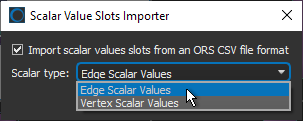
The options for importing scalar values from an ORS-formatted and generic CSV file are available in the Scalar Values Slots Importer dialog, shown below. You can choose to import either edge or vertex scalar types.
ORS-formatted CSV files are formatted in columns as follows: | Time Step | ID | Measurement (unit) |, in which the ID can be related to an edge or vertex. Generic CSV files must be formatted as: | ID | Value |. Other information, such as the slot title, dimension type, unit, and time step, must be entered manually.
 How to Import Scalar Values from an ORS-Formatted CSV File
- Right-click the required graph in the Data Properties and Settings panel and then choose Import Scalar Values from a CSV File in the pop-up menu.
The Scalar Values Slots Importer dialog appears.
- Check the Import scalar values slots from an ORS CSV file format option, if the CSV file was exported from Dragonfly.
- Choose a scalar type — Edge Scalar Values or Vertex Scalar Values — in the Scalar type drop-down menu.
- Click Continue.
- Choose the required CSV file in the Import Data from File dialog.
- Click Open to import the scalar values from the selected CSV file.
- Save your changes, if required (see Exporting Objects).
How to Import Scalar Values from a Generic CSV File
- Right-click the required graph in the Data Properties and Settings panel and then choose Import Scalar Values from a CSV File in the pop-up menu.
The Scalar Values Slots Importer dialog appears.
- Uncheck the Import scalar values slots from an ORS CSV file format option, if you are importing values from a generic CSV file.
The Imported slot information box appears in the dialog, as shown below.
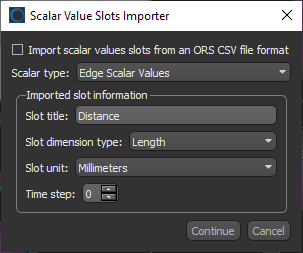
- Choose a scalar type — Edge Scalar Values or Vertex Scalar Values — in the Scalar type drop-down menu
- Enter the required Imported slot information, which includes the Slot title, Slot dimension type, Slot unit, and Time step, that corresponds to the scalar values that you want import.
- Click Continue.
- Choose the required CSV file in the Import Data from File dialog.
- Click Open to import the scalar values from the selected CSV file.
- Save your changes, if required (see Exporting Objects).


